
 Deutsch
 English
VNC redirection
If you log on to a Linux computer via the network and want to use programs with a graphical user interface (such as kprinter), you need a screen redirection. From a Linux computer you can simply use ssh -X, then graphical programs should start normally.
When logging in from a Windows computer, you can help yourself in this way:
Start VNC server
Start a new X server on the server with
vncserver -query localhostThis returns a message of the form
New 'X' desktop is host:1or similar, where the "1" is the number of the X server, it can change. This should be noted. It is often useful to reduce the size of the redirected screen by using, for example
vncserver -query localhost -geometry 800x600You can also use the -once option to instruct the server to run for a single session only and then exit automatically. The first time vncserver is called, you will be asked for a password. You will need this later in order to access the server. It does not have to be the user password. To change the password, delete the file
~/.vnc/passwdYou will then have to enter a new one the next time you start the server.
Establishing an SSH tunnel
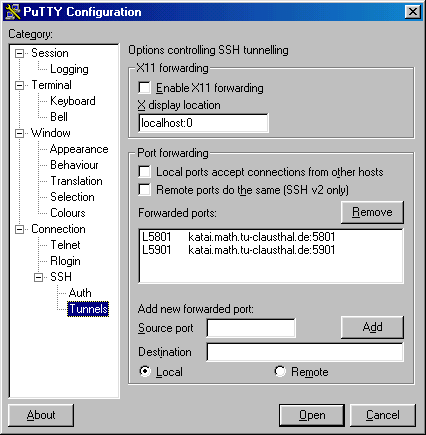
On the Windows client, start an SSH connection to the server with PuTTY, i.e. start PuTTY, select host and port 22. In addition, two ports must be tunneled. This works like this:
- Select "Connection/SSH/Tunnels" from the menu on the left.
- Source port: 5801
- Destination: rechner.math.tu-clausthal.de:5801
- and click Add, then do the same with 5901.
- <it>The last digit must correspond to the number of the X server (see above)!
- Select "Open" and log in with ID and password.
View in the browser
Start WWW browser and enter the URL
localhost
(adjust the last digit again). A Java display of the screen redirection is running. The image content is transferred as a JPEG, so it is not particularly fast. This is sufficient for most programs within the Mathematics Institute, but you probably don't want to work with it permanently.
View with viewer
It is best to use TightVNC here. Once the SSH tunnel is established, simply start the program and enter the display number of the VNC server (see above, e.g. localhost:1). Now you can adjust the options if necessary, especially with regard to data compression. The viewer then simply asks for the VNC password stored on the server and you're ready to go.
Exit
- client: Exit browser/viewer
server: Terminate vncserver with
vncserver -kill :1- (not applicable with option -once)
- client: Terminate SSH connection/PuTTY.